.png?width=1322&height=350&name=C3ITXperts-logo-R%20(1).png "C3ITXperts-logo-R (1)")


Updated August 17th 2026
Touch screens are changing how people use information
A regular display shows information.
A touch screen lets people do something with that information.
They can choose a service, open a map, answer a question, compare products, write on a lesson, register for an event, or find a room.
That is why touch screen technology is now used in many places:
- Schools and colleges
- Offices and meeting rooms
- Retail stores
- Hospitals and clinics
- Banks and payment points
- Airports and transport centers
- Hotels and public buildings
- Exhibitions and events
The technology is familiar because people already use touch every day on their phones. But a large touch screen needs more than a touch surface to be useful.
It also needs:
- Clear content
- Simple navigation
- Reliable software
- Good network access
- Secure data handling
- Suitable installation
- Ongoing support
A successful touch screen does not make people work harder. It helps them complete the next step more easily.
This guide explains eight practical uses of touch screen technology in 2026. It also explains how to plan a touch screen project so the display does more than look impressive.
What is touch screen technology?
A touch screen is a display that responds to a finger, stylus, or another supported input method.
Depending on the device, a user may be able to:
- Tap an option
- Swipe between screens
- Zoom into an image
- Move an object
- Write or draw
- Complete a form
- Open a video
- Search for information
- View a map
- Answer a question
Some touch screens support only one person at a time. Others support several touch points and allow multiple users to work together.
The correct screen depends on the job.
A classroom needs smooth writing, clear sound, and student participation.
A payment kiosk needs security and privacy.
A retail display needs product information and easy browsing.
A public information screen needs large text, simple choices, and reliable updates.
The screen is only one part of the solution. Software, content, devices, connectivity, security, mounting, and support are equally important.
Why are touch screens useful?
Touch screens can improve an experience in four simple ways.
They reduce effort
People can select an option directly instead of explaining every request to a staff member.
They make information easier to explore
Users can choose what they want to see instead of reading one long message.
They make participation possible
Students, employees, customers, and visitors can respond instead of only watching.
They create useful data
When people register, answer a survey, request a quote, or choose a product, the organisation can learn what they need.
Touch technology is most useful when it supports a real task.
Touch screens in education
Education is one of the strongest uses of large touch screen technology.
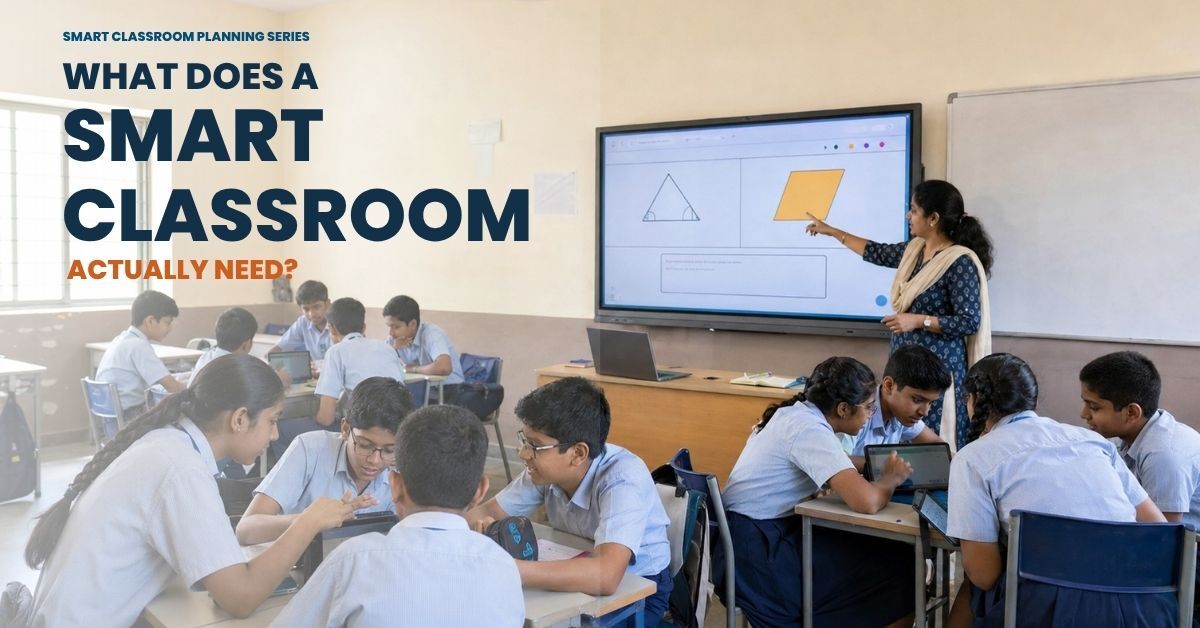
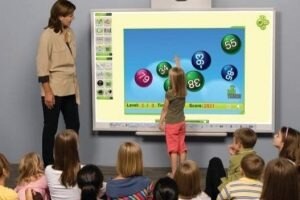
An interactive display can help a teacher present a lesson, show a diagram, play a video, open a learning application, save notes, and invite students to work on the screen.
How teachers use touch screens
A teacher can:
- Display a lesson
- Write over a presentation
- Move images and labels
- Show a digital model
- Display student work
- Use a quick poll
- Run a group activity
- Save the lesson for revision
Mathematics
A teacher can display a number line and ask students to place fractions.
Students can compare one-half, one-quarter, and three-quarters.
The class can discuss why one answer is correct.
The teacher is not only showing the answer.
Students are showing their thinking.
Science
A teacher can show a diagram of a plant or a cell. Students can label the parts, identify the function of each part, and explain the relationship between them.
Language learning
Students can arrange sentences, match words with images, correct grammar, or build a story from a sequence of pictures.
What makes the classroom experience better?
The teacher must connect the technology to a clear activity.
A video alone may not create learning.
Add a question before the video, an observation task during the video, and a short discussion after it.
C3 iT Xperts provides interactive display solutions for schools that can support multimedia content, collaboration, digital writing, and student participation.
What schools should plan
Before installing panels, check:
- Room size
- Viewing distance
- Seating layout
- Teacher devices
- Internet and Wi-Fi
- Audio
- Lesson software
- Teacher training
- Student safety
- Technical support
A touch screen becomes useful when teachers can use it during normal lessons. Installation alone does not create adoption.
Touch screens in offices
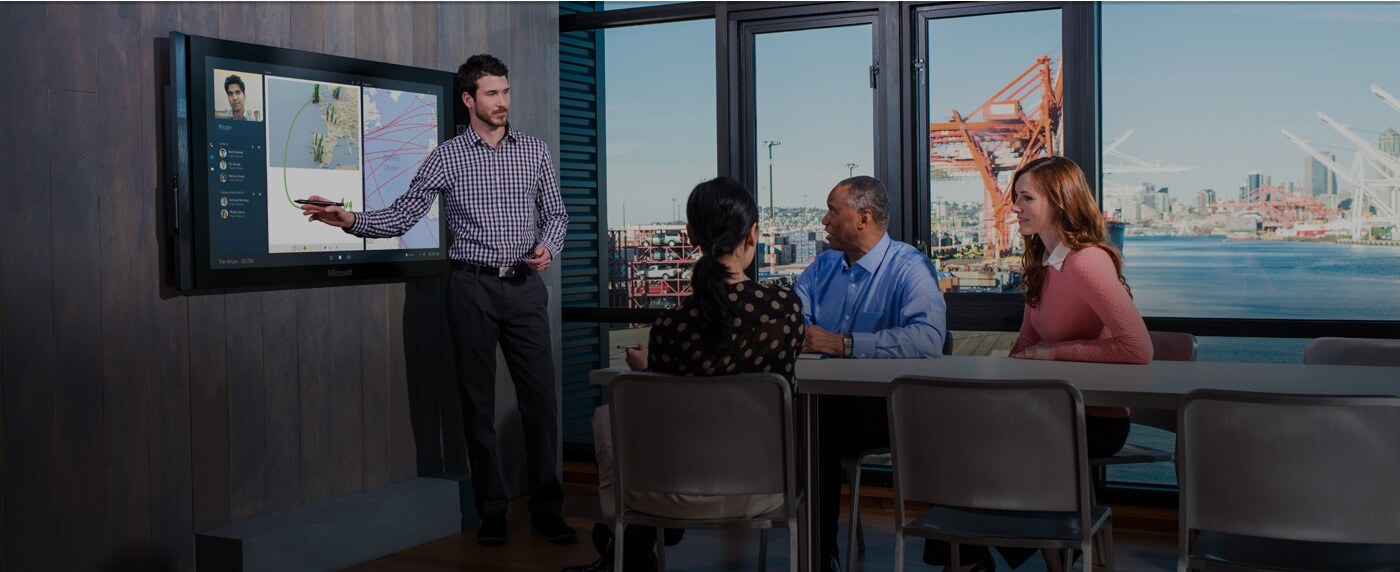
Touch screens can make office work more visual and collaborative.
A meeting often includes a presentation, discussion, decisions, and a list of actions. When these activities happen on separate devices and documents, people may lose track of the final decision.
A large touch display can provide one shared space.
Office uses
Teams can use touch screens for:
- Project planning
- Document review
- Design discussions
- Brainstorming
- Timelines
- Process mapping
- Staff training
- Sales presentations
- Video meetings
- Decision making
A better meeting flow
Use the screen in a simple order:
- Show the problem.
- Display the information needed.
- Ask the team to add ideas or mark options.
- Agree on the decision.
- Record the next action.
The purpose is not to add technology to a meeting.
The purpose is to help the team reach a clear result.
Hybrid meeting support
A touch screen can support remote collaboration when it works with a camera, microphone, video software, and stable network.
Remote participants should be able to see the main content, hear the conversation, share information, and read the notes.
Test the entire meeting room before choosing the equipment.
A clear display with poor audio still creates a poor meeting.
Touch screens in retail and showrooms
Retailers use touch screens to help customers explore products before speaking to a salesperson.
A customer can:
- Browse a product range
- Compare features
- View different colours
- Check specifications
- Explore custom options
- See videos
- Find related products
- Request a quotation
- Ask for assistance
Make more products available
A showroom cannot display every product, colour, size, or configuration.
A touch screen catalogue can show the wider range.
Customers can explore products that are not physically available in the store.
This is useful for:
- Furniture
- Cars
- Home interiors
- Electronics
- Jewelry
- Education technology
- Building materials
Support a better sales conversation
The customer can make choices on the screen.
The salesperson can then focus on questions, advice, and the next step.
The screen should not replace the salesperson.
It should give the salesperson better information to use.
Measure the result
A retail touch screen can track:
- Most-viewed products
- Frequently selected options
- Quote requests
- Customer questions
- Time spent exploring
- Products that need better explanation
This information can improve both the display content and the sales process.
Touch screen information kiosks
An information kiosk helps people find answers without waiting for staff.
Kiosks are used in:
- Universities
- Hospitals
- Museums
- Hotels
- Airports
- Shopping centres
- Corporate offices
- Government buildings
- Large campuses
- Event locations
What can a kiosk show?
- Maps and directions
- Event schedules
- Room information
- Department details
- Product catalogues
- Service information
- Frequently asked questions
- Visitor instructions
- Digital menus
- Appointment information
Keep the user journey simple
A kiosk should answer three questions immediately:
- What is this?
- What can I do here?
- What should I choose next?
Use large buttons, short text, clear icons, and a visible home button.
Do not put a full desktop website on a kiosk.
A kiosk needs a simple interface built for quick touch use.
Keep information updated
An outdated timetable, map, or room number quickly reduces trust.
Assign one person or team to update the content.
Build a review process so the information stays correct.
A good kiosk reduces waiting. A confusing kiosk simply moves the queue to another place.
Touch screens for payments and self service
Touch screens are common in ATMs, ticket machines, parking systems, payment points, and self-checkout systems.
The main benefit is convenience. Users can follow a clear process without asking staff to complete every step.
A good payment screen should show
- The current step
- The information needed
- The available choices
- A back or correction option
- A final confirmation
- A receipt or reference number
Security must come first
Payment systems handle sensitive information.
They need stronger protection than a general display.
Review:
- Secure payment software
- Session timeout
- Screen privacy
- Data protection
- Physical protection
- Remote monitoring
- Accessibility
- Clear confirmation messages
The screen should not leave another user’s details visible after a transaction.
Convenience is useful only when people can trust the system.
Touch screens in healthcare
Hospitals and clinics can use touch screen systems to guide visitors and reduce unnecessary waiting.
Healthcare applications
- Patient check in
- Appointment confirmation
- Wayfinding
- Department information
- Queue updates
- Health education
- Feedback forms
- Visitor instructions
- Service information
Help people find their way
Hospitals can be difficult to navigate.
An interactive map can help visitors find registration, consultation rooms, laboratories, pharmacies, waiting areas, emergency departments, toilets, and exits.
Use clear language and offer more than one language when needed.
Protect patient information
Healthcare systems must protect private information.
Sessions should close automatically.
Users should not see another patient’s details.
Access should be limited to authorized systems and staff.
Accessibility is also important.
Some patients may have limited vision, hearing, movement, or digital confidence.
A good healthcare touch screen reduces confusion.
It does not create another barrier.
Touch screens at exhibitions and events
People often walk past static displays.
A touch screen can invite visitors to explore.
At an event, visitors may be able to:
- View a product demonstration
- Explore a service
- Watch a video
- Open a case study
- View a 3D model
- Compare options
- Take a short quiz
- Register for a follow-up
- Request a meeting
Design the first screen carefully
The first screen should be simple. It should explain what the display offers and show the next action.
Keep choices limited. Use strong images. Make it easy to return to the home screen.
Connect the screen to lead generation
A display can collect:
- Name
- Company or school
- Email or phone number
- Area of interest
- Preferred follow up method
Keep the form short. Explain what will happen after submission.
The screen creates the opportunity. The follow up team creates the lead result.
Read 6 Major Uses of Large Touch Screen Display Monitors for more event, kiosk, signage, and lead generation examples.
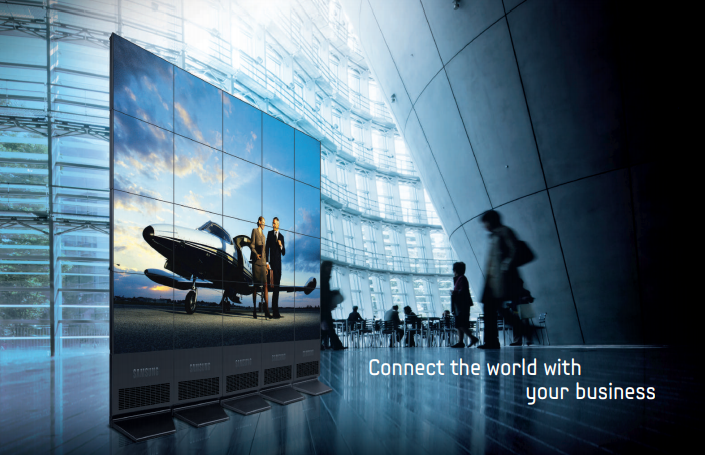
Touch screens for digital signage and public information
Digital signage helps organizations share information in real time.
A touch enabled sign gives people a choice.
They can select the information they need instead of reading one message meant for everyone.
Examples
- School announcements
- Campus directions
- Conference schedules
- Safety information
- Visitor check-in
- Product information
- Welcome messages
- Interactive menus
- Public service information
- Brand stories
Use a simple content order
- Main message
- Next action
- Supporting information
- Help or contact option
The content should match the location.
A school hallway needs calm, readable content. An exhibition may need fast visual interaction. A reception area may need a professional welcome.
C3 iT Xperts provides Digital Signage solutions for dynamic messages, multimedia content, remote updates, and interactive communication.
How to choose the right touch screen system
Define the user
Who will use the screen?
A student, teacher, employee, visitor, customer, patient, or member of the public?
Define the task
Should the user learn, explore, collaborate, register, pay, find information, or request help?
Choose the screen size
Check room size, viewing distance, seating, foot traffic, and user movement.
Test the touch response
Check writing, accuracy, multi-touch, palm rejection, and speed.
Review the software
The software should match the task.
A classroom needs lesson tools.
A kiosk needs simple menus.
A payment system needs secure transaction software.
Check connectivity
Test wired and wireless connections, internet access, device compatibility, and cloud services.
Protect privacy
Use stronger controls for payment, patient, student, and business information.
Assign content ownership
Someone must update schedules, products, lessons, services, and announcements.
Plan installation
Review power, mounting, height, cable routes, lighting, sound, accessibility, and safety.
Plan support
Ask who will update software, repair faults, train users, and manage the system after installation.
A touch screen is a system, not only a screen.
Common mistakes to avoid
Buying only because the display is large
A larger display is not automatically better. It must fit the space and the user task.
Treating a touchscreen like a television
If the screen only plays slides and videos, the organization may not be using its main benefit.
Using complex menus
Users should not need training to find the main action.
Creating poor content
A touch screen cannot fix unclear writing, weak images, or confusing instructions.
Collecting information without follow-up
A registration form does not create a lead unless someone receives and answers the enquiry.
Forgetting accessibility
Check text size, height, reach, language, contrast, sound, and alternative support.
Installing without training
Users need guidance, troubleshooting, updates, and a clear support contact.
Measure outcomes, not screen taps
A touch screen is successful when it helps people complete a useful task.
Do not ask only,
How many people touched the screen?
Ask,
What did they do after using it?
In schools
Track:
- How many teachers use the display every week
- How many students take part in activities
- How much lesson preparation time is saved
- How much student work is created and saved
- How often technical problems occur
- How confident teachers feel using the system
Success looks like:
Teachers start lessons faster.
More students respond.
Lesson resources are reused.
Teachers need less technical help.
In offices
Track:
- How many people take part in meetings
- How quickly decisions are made
- How many action items are recorded
- Whether meeting notes are shared and reused
- How many employees complete training
Success looks like:
Meetings are easier to follow. Decisions are recorded clearly. People leave knowing what they need to do next.
In retail stores
Track:
- Products customers search for
- Time spent exploring products
- Quote or enquiry requests
- Customer questions
- Sales conversations supported by the display
- Customer feedback
Success looks like:
Customers find information faster. Sales staff have better conversations. More visitors move from browsing to enquiry.
In kiosks
Track:
- The information people use most
- Pages where users get stuck
- Questions reduced at the help desk
- Average time to complete a task
- Time taken to update information
Success looks like:
Visitors find answers without waiting.
Staff spend less time handling basic questions.
Information stays current.
At exhibitions and events
Track:
- Number of visitors who interact
- Time spent exploring the content
- Registrations completed
- Qualified leads collected
- Demo or meeting requests
- Follow-up results
Success looks like:
The display attracts the right visitors, starts useful conversations, and creates measurable follow-up opportunities.
The best measurement is not activity alone. It is the useful result that happens after the interaction.
A simple 30-day implementation plan
1: Define the problem
Choose one clear problem. Visitors may not find rooms. Teachers may need a better digital lesson. Customers may need more product information.
2: Prepare the content
Create a simple user journey. Decide what appears first, what the user can choose, and what happens at the end.
3: Test with real users
Ask people from the target audience to use the screen without help. Watch where they stop or become confused.
4: Improve and launch
Fix the navigation, content, screen position, and support process before wider use.
A simple system that people use is better than a complex system that nobody understands.
Get help planning your touch screen system
Choosing touch screen technology is not only a display decision.
It is a decision about how people will learn, work, search, register, collaborate, and receive information.
C3 iT Xperts can help with:
- Interactive displays
- Classroom technology
- Digital signage
- Large touch screen systems
- Audio and video
- Hybrid learning
- Software and content workflow
- Installation and support
Book a consultation
Talk to C3 iT Xperts about your touch screen technology needs
Explore classroom and display solutions
See C3 iT Xperts Classroom Tech solutions
Get the SMART Classroom Reset Guide
Download the free SMART Classroom Reset Guide
Frequently asked questions
What are the main applications of touch screen technology?
Touch screen technology is used in education, business meetings, retail, information kiosks, payment systems, healthcare, exhibitions, public information, digital signage, and entertainment.
How are touch screens used in schools?
Schools use them for lessons, digital whiteboarding, videos, student activities, presentations, group work, assessments, and hybrid learning.
Are large touch screens useful in offices?
Yes. They can help teams present, annotate documents, plan projects, collaborate with remote colleagues, and save meeting notes.
How are touch screens used in retail?
Retailers use them for product catalogues, comparisons, customization, product information, assisted selling, and customer enquiries.
What is an information kiosk?
An information kiosk is a self-service touch screen that helps users find information such as maps, schedules, product details, services, and directions.
Are touch screens suitable for healthcare facilities?
They can support check-in, wayfinding, appointment information, health education, feedback, and queue information. Healthcare systems must protect private patient information.
How do touch screens help with lead generation?
They can support short registration forms, consultation requests, product enquiries, event sign-ups, surveys, and appointment booking. The collected information must connect to a clear follow-up process.
What should I check before buying a large touch screen?
Check touch response, screen size, viewing distance, software, content, connectivity, security, privacy, accessibility, installation, warranty, maintenance, and support.
Does installing a touch screen automatically improve engagement?
No. Engagement depends on the content, user task, interface, training, and support. A touchscreen can still deliver a passive experience if the content is not designed for interaction.
Can C3 iT Xperts help plan a touch screen solution?
Yes. C3 iT Xperts can help schools and organisations review the use case, display, software, infrastructure, content, installation, training, and support requirements.
About the Author

Manoj Sundaram
Founder @ C3 iT Xperts
I help K–12 leaders turn "dusty" classroom tech into a daily teaching habit. 18 years and 11,000 classrooms have taught me that the best tech is the tech that "disappears" into the teaching rhythm.
18+
Years Experience
11k+
Classrooms
50k+
Educators Impacted