.png?width=1322&height=350&name=C3ITXperts-logo-R%20(1).png "C3ITXperts-logo-R (1)")


Updated August 17th 2026
The large screen is no longer just a screen
A large display can show a presentation.
A large touch screen display can change the way people participate in the presentation.
That difference matters.
A passive screen asks people to look.
A touch-enabled display can ask them to choose, write, move, compare, search, register, collaborate, or respond.
That is why large touch screen display monitors are appearing in more schools, offices, training rooms, exhibition spaces, reception areas, and public facilities.
But buying a large touchscreen is not enough.
The value comes from what people can do with it.
A display that only plays slides may be impressive for a few minutes.
A display that helps a teacher explain a difficult concept, helps a team solve a problem, helps a visitor find information, or helps an organization capture a qualified enquiry can become part of the everyday workflow.
The best use of a large touch screen is not making content bigger.
It is making participation easier.
This guide explains six major uses of large touch screen display monitors, the experience each use creates, and what to consider before choosing a solution.
What are large touch screen displays used for?
Large touch screen display monitors are commonly used for:
- Interactive teaching and learning
- Corporate meetings and collaborative work
- Product demonstrations and exhibition experiences
- Self-service information kiosks
- Paperless registration and lead generation
- Digital signage, wayfinding, and interactive entertainment
The right use depends on the audience, room size, content, software, connectivity, and level of interaction required.
A school may need handwriting, annotation, student participation, and lesson sharing.
A business may need video meetings, wireless presentation, and collaborative planning.
An event organizer may need a branded product demonstration, digital registration, or an interactive map.
Before choosing the screen, define the action you want the user to take.
Do you want them to learn?
Collaborate?
Explore?
Register?
Find information?
Make a purchase decision?
The answer determines the right display, software, mounting, support, and content plan.
Transform classrooms into interactive learning environments
From watching a lesson to participating in it
Education is one of the most useful applications for large touch screen displays.
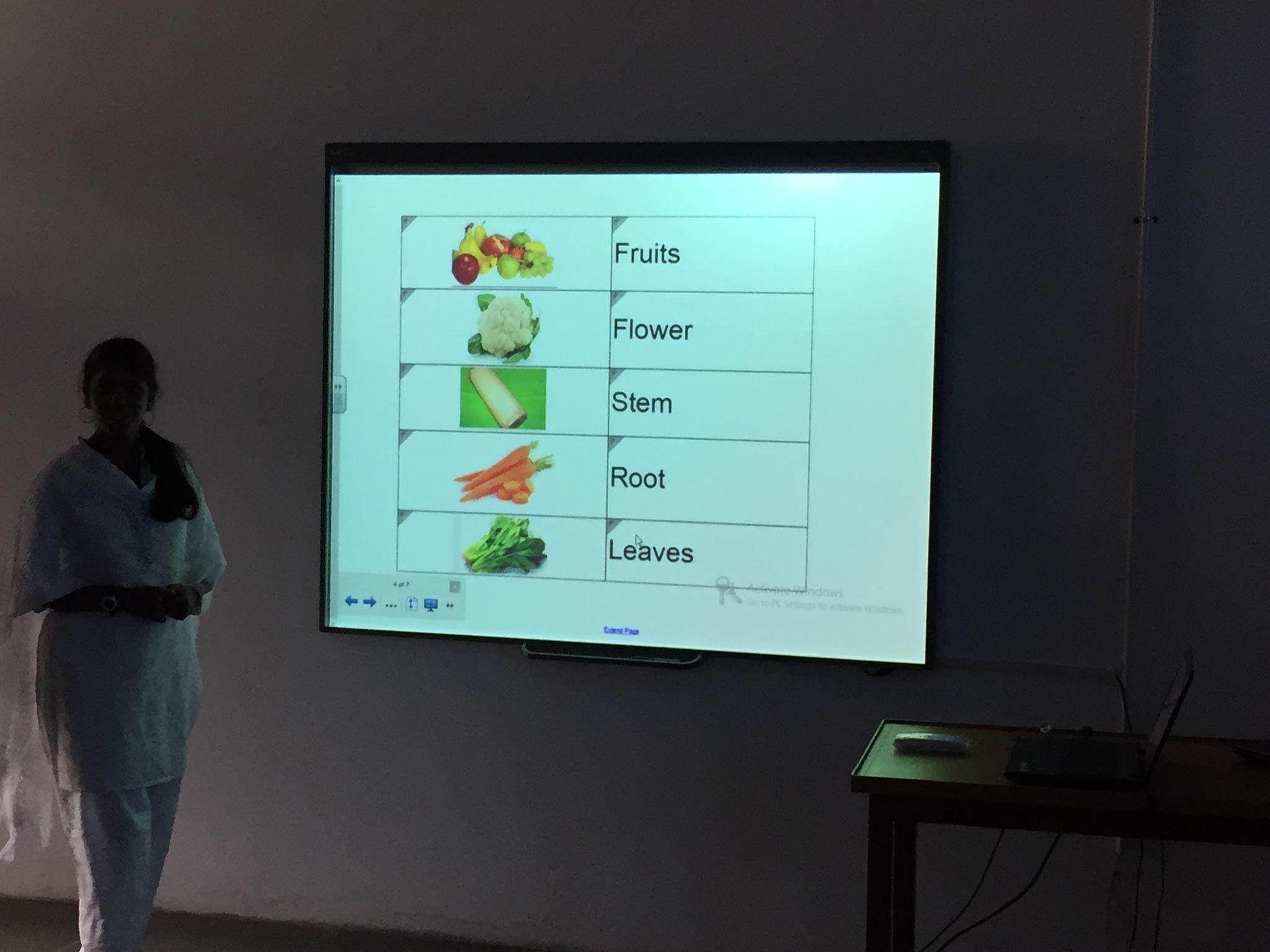
A teacher can use the screen to display a diagram, annotate a text, solve a problem, play a video, explore a map, or demonstrate a scientific process. Students can also come to the screen to write, sort, draw, compare, and explain.
This changes the classroom dynamic.
The lesson is no longer limited to a teacher speaking while students copy notes. The display becomes a shared working space.
Practical classroom examples
- A mathematics teacher displays a problem and invites students to show different solution methods.
- A science teacher labels a diagram or explores a three-dimensional model.
- A language teacher highlights sentence structure and asks students to correct an example.
- A history teacher examines a map, timeline, or primary-source image.
- A primary teacher uses touch-based games to practice numbers, letters, or vocabulary.
- A group of students presents a project directly from the display and responds to questions.
Why touch makes the difference
A projector can show content. A large touch screen allows the teacher and students to work on that content.
The teacher can write over a presentation, save notes, open a blank canvas, move objects, and return to an earlier part of the lesson. Students can interact with the material rather than waiting for the teacher to control every step.
However, the display should support a clear lesson objective.
Touch alone does not guarantee learning.
The teacher still needs a good question, activity, explanation, and check for understanding.
C3 iT Xperts’ interactive display solutions for schools are designed to support multimedia lessons, collaboration, cloud access, student participation, and real-time feedback.
What schools should plan before installation
- Viewing distance for students in the back row
- Room size and display placement
- Teacher device and operating system
- Network and internet reliability
- Audio quality for videos and remote lessons
- Storage and sharing of lesson notes
- Teacher training and ongoing support
A screen becomes valuable when teachers can use it confidently during ordinary lessons. Installation is the beginning of adoption, not the end.
For more classroom examples, read Classrooms and Large Touch Screen Monitors: A Formula for Interactive Teaching.
Improve meetings, presentations, and team collaboration
Make meetings more active and more useful
Large touch screen displays are also useful in boardrooms, conference rooms, training spaces, and collaborative work areas.
A traditional meeting often follows a predictable pattern.
One person presents. Everyone else watches.
Questions are saved until the end.
Notes are written separately. Decisions are difficult to track.
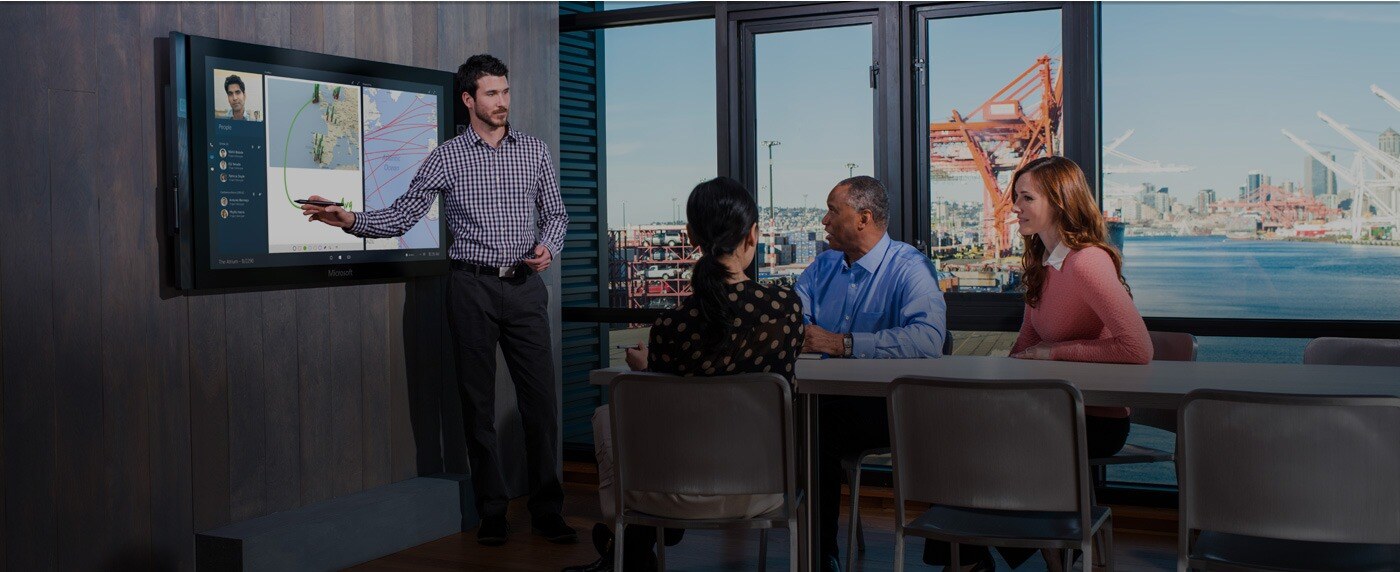
A touch-enabled display can make the meeting more visual and participatory.
Common office applications
- Presenting proposals and reports
- Reviewing designs and documents
- Planning projects on a shared canvas
- Annotating diagrams, plans, or workflows
- Comparing options during a decision meeting
- Conducting remote meetings with shared content
- Training employees using interactive exercises
- Brainstorming ideas with digital notes
A team can open a document, mark the important sections, move ideas into groups, and save the final version for later use. Instead of leaving the meeting with scattered notebook pages, participants can leave with a shared digital record.
Large touch screen displays for remote collaboration
Hybrid work makes meeting clarity more important.
Participants in the room need to see remote colleagues, shared documents, and presentation content without constant switching between devices.
A well-designed meeting room can combine:
- A large touch display
- Camera and microphone systems
- Wireless presentation
- Video-conferencing software
- Shared digital whiteboards
- Centralized file access
The display should not become another complicated device that employees avoid.
The meeting workflow should be simple enough for people to start a session without calling technical support every time.
How to improve meeting outcomes
Use the display for a specific action:
- Start with the decision that must be made.
- Display the information needed to make that decision.
- Invite participants to annotate or compare options.
- Record the agreed action before the meeting ends.
- Share the final notes with the team.
The goal is not to fill the room with technology.
The goal is to reduce confusion and help people make progress.
3 Create product demonstrations and exhibition experiences
Turn a demonstration into an experience
At an exhibition, conference, showroom, or open house, people often walk past static displays without stopping.
A large touch screen creates an opportunity to invite action.
Visitors can explore product features, view a service journey, compare options, open videos, find case studies, or request more information. Instead of waiting for a staff member to explain everything, visitors can follow their own interests.
Examples for exhibitions and events
- A technology company demonstrates an application through an interactive interface.
- A school showcases student projects, facilities, and learning programs during an open house.
- A real estate company allows visitors to explore floor plans, amenities, and locations.
- A healthcare organization provides service information and educational content.
- A manufacturer displays product models, specifications, and use cases.
- A university presents courses, departments, campus maps, and student experiences.
Why interactive demonstrations attract attention
People are more likely to stop when they can do something immediately.
They may tap a product category, rotate a model, select a question, compare two options, or watch a short demonstration.
The interaction creates a natural conversation between the visitor and the organization.
This is especially useful when a product is complex. Instead of explaining every feature in one long speech, the display can guide the visitor through a simple sequence.
Design the experience around the visitor
Avoid creating a touchscreen that requires a staff member to explain every button. The first screen should answer three questions:
- What is this?
- What can I explore?
- What should I do next?
Keep the content visual, the navigation obvious, and the number of choices manageable. Include a clear way to return to the home screen.
A demonstration should also have a human follow-up.
The display can attract attention and explain the offering, while a staff member handles questions, qualification, and next steps.
4 Build self service information kiosks
Help people find answers at their own pace
Not everyone wants to ask for help immediately.
A large touch screen kiosk can provide information without requiring staff to answer every basic question.
It can be placed in a reception area, campus, hospital, retail environment, museum, event venue, or public facility.
Useful kiosk functions
- Interactive maps and directions
- Event schedules
- Room or department information
- Product catalogues
- Service explanations
- Frequently asked questions
- Visitor instructions
- Digital menus
- Facility rules and announcements
- Accessibility information
A visitor can select the information they need, explore it at their own pace, and return to the home screen when finished.
What makes a kiosk successful?
A kiosk must be easy to understand without training.
Use large labels, clear icons, strong contrast, and short instructions.
Avoid presenting a dense webpage on a large screen.
A kiosk needs a purpose-built interface.
The content should also be maintained. If an event schedule changes, the kiosk must show the new information. Outdated information damages trust quickly.
Kiosk accessibility matters
Consider users with different ages, languages, physical abilities, and levels of digital confidence.
- Use readable text sizes.
- Provide clear navigation.
- Keep important actions within comfortable reach.
- Offer language choices where necessary.
- Avoid relying only on color to communicate information.
- Provide an alternative support route if the kiosk cannot answer the question.
A good kiosk reduces waiting and helps staff focus on higher-value conversations.
A confusing kiosk simply moves the queue from the reception desk to the screen.
5 Enable paperless registration and lead generation
Turn interaction into a useful next step
Large touch screen displays can also support registrations, enquiries, surveys, and lead generation.
At an event, visitors can enter their details on a digital form.
At a school open house, parents can request a call or download information.
At a showroom, a visitor can select a product and ask for a quotation.
Digital registration is often more convenient than paper forms, but convenience alone does not create good leads.
The experience must be short, clear, and trustworthy.
Lead-generation uses
- Event registration
- Demo requests
- Consultation bookings
- Newsletter subscriptions
- Product enquiry forms
- Visitor surveys
- Feedback collection
- School open-house enquiries
- Download requests
- Appointment scheduling
Keep the form short
Ask only for information that is necessary for the next step. Long forms reduce completion.
A simple form might request:
- Name
- Work or school name
- Email or phone number
- Area of interest
- Preferred follow-up method
Explain what happens after submission. For example: “A C3 iT Xperts specialist will contact you about your classroom technology requirements.”
Protect trust and data
A registration display should make it clear why information is being collected and how it will be used. Use secure systems, restrict access to submitted data, and avoid exposing previous visitors’ information on the screen.
If the display is used at a public event, provide a privacy notice and a clear confirmation after submission. The visitor should know whether the form was sent successfully.
Connect the screen to the follow-up process
The most common mistake is collecting leads without assigning ownership. Decide who receives the enquiry, how quickly they respond, and what information is captured for the conversation.
The screen creates the opportunity. The follow-up process creates the result.
6 Deliver digital signage, wayfinding, and interactive entertainment
Make information visible and engaging
Large touch screen display monitors can be used for digital signage and interactive information. They can welcome visitors, show announcements, display directions, share schedules, or provide audio-visual messages.
The difference between ordinary signage and interactive signage is choice.
A static sign tells everyone the same thing. An interactive display allows each user to select the information they need.
Examples of digital signage
- Welcome messages in reception areas
- Campus maps and room directions
- School announcements
- Conference schedules
- Product information
- Safety instructions
- Visitor check-in guidance
- Interactive menus
10. Entertainment and educational activities
Make signage useful, not noisy
Digital signage should have a clear communication purpose.
Too many animations, colors, and messages can reduce attention rather than improve it.
Use a simple content hierarchy:
- The most important message
- The action the visitor should take
- Supporting information
- A way to ask for help or continue exploring
For entertainment, the content may include quizzes, games, interactive stories, or educational activities. For business, it may include product exploration, brand communication, or event information.
The content should match the environment. A busy exhibition may need fast, visual interactions. A school hallway may need calm, readable content. A corporate reception area may need a professional welcome and wayfinding experience.
The difference between a large display and a useful solution
A large touchscreen can look impressive in a product catalogue. But a successful installation depends on more than screen size.
Before selecting a display, ask what the user must be able to do.
1. Touch performance
Will one person use the display, or will several people interact at the same time? Consider touch responsiveness, multi-touch requirements, palm rejection, and writing accuracy.
2. Viewing distance and room size
A screen should be readable from the furthest important position. In classrooms, check the back row. In meeting rooms, check every seat. In exhibitions, check how people approach the display.
3. Content and software
A display is only as useful as the content running on it. Confirm whether the system supports presentations, digital whiteboarding, video, web content, forms, kiosks, or specialized software.
4. Connectivity
Review wired and wireless connection options, network availability, device compatibility, and access to cloud resources. Do not assume every existing device will work smoothly without testing.
5. Audio and cameras
If the display will support video, remote meetings, or demonstrations, audio quality matters. A clear screen with poor sound can still create a frustrating experience.
6. Installation and ergonomics
Consider wall mounting, height, viewing angles, cable management, power, ventilation, and accessibility. The display should fit the space instead of creating a new obstacle.
7. Support and maintenance
Ask who will configure the device, train users, resolve faults, update software, and support the system after installation. A product without a support plan can quickly become an expensive unused screen.
C3 iT Xperts’ education solutions connect classroom technology, IT infrastructure, software, hybrid learning, and support into a broader education technology environment.
Common mistakes to avoid
1: Buying based only on screen size
A larger screen is not automatically better. The display must fit the room, audience, content, and interaction model.
2: Treating a touchscreen like a television
If the display is used only for static slides or videos, the organization may be paying for interaction without using it.
3: Ignoring the content plan
A screen installed without prepared content, templates, navigation, or ownership often becomes digital wallpaper.
4: Overcomplicating the user experience
Too many buttons, menus, and applications make people avoid the display. Start with a small number of useful actions.
5: Collecting data without a follow-up process
A registration form is not a lead-generation system unless someone receives, qualifies, and follows up with the enquiry.
6: Forgetting accessibility and privacy
Public displays must consider readability, reach, language, data protection, and alternative support options.
7: Stopping at installation
Users need orientation, practical training, and support.
The first day creates awareness; repeated use creates value.
How to measure whether the display is working
A successful display should produce a useful outcome, not only screen time.
In meetings, measure:
- Time spent reaching decisions
- Participation across the team
- Number of actions recorded
- Reuse of meeting notes
- Reduction in disconnected presentation files
At events, measure:
- Number of interactions
- Time spent exploring content
- Completed registrations
- Qualified enquiries
- Requests for demonstrations
- Follow-up conversion
For kiosks and signage, measure:
- Most-used information sections
- Search or navigation failures
- Visitor questions reduced
- Average interaction time
- Content updates completed on schedule
Do not confuse interaction volume with value. A visitor can tap a screen repeatedly without understanding the message. Measure the result that matters to your organization.
Where large touch screen displays create the most value
The strongest use cases usually share four characteristics:
- People need to understand or explore information.
- Participation improves the experience.
- The content changes or requires personal choice.
- The organization can measure a useful next step.
That is why large touch screen displays work well in classrooms, meeting rooms, exhibitions, kiosks, registration areas, and digital signage environments.
The display becomes more valuable when it connects people to content, people to each other, or people to the next action.
A simple decision framework
Before purchasing, answer these questions:
Who will use the display?
Employees, visitors, customers, event attendees, or the public?
What should they do?
Collaborate, explore, register, find information, compare options, or request help?
How often will it be used?
Occasionally during events, or every day in a classroom or meeting room?
Who owns the content?
Someone must update schedules, product information, forms, or announcements.
What happens when the system fails?
Create a support contact and a practical backup process.
How will success be measured?
Define the outcome before installation so you can evaluate whether the display is helping.
If these questions are not clear, a product comparison alone will not solve the decision.
A large touch screen display can improve teaching, collaboration, visitor experience, and information access but only when the complete environment is planned properly.
C3 iT Xperts helps organizations assess their technology needs, select suitable classroom and display solutions, plan installation, support users, and build systems that people can use confidently.
Frequently asked questions
What is a large touch screen display monitor?
A large touch screen display monitor is a large-format screen that allows users to interact directly with the content using touch, gestures, digital writing, or other input methods. It can be used for presentations, collaboration, learning, kiosks, signage, registration, and interactive demonstrations.
What is the main advantage of a large touchscreen over a projector?
A projector mainly displays content, while a touchscreen allows users to interact with that content. Teachers, employees, students, visitors, and customers can write, select, move, compare, and explore information directly on the display.
Are large touch screen displays useful for schools?
Yes. Schools can use them for interactive lessons, annotation, collaboration, video, formative assessment, student presentations, digital whiteboarding, and hybrid learning. Successful use depends on teacher workflow, content, infrastructure, and support.
Can large touchscreens be used for lead generation?
Yes. They can support event registration, consultation requests, product enquiries, surveys, newsletter subscriptions, and appointment booking. The form should be short, secure, easy to understand, and connected to a clear follow-up process.
Are large touch screen monitors useful in offices?
Yes. They can support meetings, presentations, project planning, remote collaboration, training, brainstorming, document review, and digital whiteboarding. The meeting room should be configured so users can start and share content without unnecessary technical complexity.
What should I check before buying a large touch screen display?
Check touch performance, screen visibility, room size, connectivity, operating system, software compatibility, audio, camera requirements, mounting, accessibility, content management, warranty, and ongoing support.
Does installing a touchscreen automatically improve engagement?
No. The display creates an opportunity for interaction, but engagement depends on the content, activity design, user experience, and support.
A passive presentation on a touchscreen can still be passive learning.
About the Author

Manoj Sundaram
Founder @ C3 iT Xperts
I help K–12 leaders turn "dusty" classroom tech into a daily teaching habit. 18 years and 11,000 classrooms have taught me that the best tech is the tech that "disappears" into the teaching rhythm.
18+
Years Experience
11k+
Classrooms
50k+
Educators Impacted
.jpg)