.png?width=1322&height=350&name=C3ITXperts-logo-R%20(1).png "C3ITXperts-logo-R (1)")


Updated August 17th 2026
A screen does not transform a classroom. The lesson does.
Many schools buy an interactive flat panel because it looks modern.
The screen is large.
The picture is bright. Students can touch it. Videos look better.
A vendor demonstrates a few impressive features.
Then the panel is installed.
A few teachers use it every day. Some use it only for videos.
Others return to the whiteboard because the panel feels slow, confusing, or difficult to use during a busy lesson.
This is the real challenge.
An interactive flat panel can improve the classroom experience, but only when the school connects it to good teaching, simple routines, useful content, and teacher support.
The best interactive display is not the one with the longest feature list.
It is the one teachers can use with confidence and students can use with purpose.
This guide explains how interactive flat panel displays can improve classroom learning in 2026.
It also explains what schools should plan before buying and how to make sure the panel becomes part of everyday teaching.
What is an interactive flat panel display?
An interactive flat panel display is a large touchscreen used for teaching and collaboration.
It can help teachers:
- Present lessons
- Write and draw on the screen
- Show videos and images
- Display websites and learning apps
- Annotate documents
- Save lesson notes
- Invite students to solve problems
- Share content from a laptop or OPS computer
- Connect remote learners
- Run quick questions and activities
In simple terms, it can combine the work of a projector, whiteboard, computer screen, and digital teaching tool.
The important word is interactive.
A projector shows content. An interactive flat panel allows the teacher and students to work with the content.
Students can move an object, label a diagram, solve a problem, compare two answers, or show their thinking. The teacher can respond immediately.
C3 iT Xperts provides interactive display solutions for schools as part of a wider classroom technology system.
Why are schools choosing interactive flat panels?
Schools are looking for better ways to:
- Keep students involved
- Explain difficult topics
- Support different learning needs
- Use digital content safely
- Help teachers prepare lessons
- Improve collaboration
- Support hybrid learning
- Reduce dependence on projectors
Traditional boards still have a place in classrooms. Digital technology does not need to replace every teaching method.
The goal is to give teachers more useful choices.
A teacher may use the panel for a diagram and then move to a notebook activity. Another teacher may use it for a student presentation or a quick assessment. The best use depends on the learning goal.
Improve student engagement
Students are more involved when they can do something with the lesson.
A teacher can use an interactive flat panel to ask students to:
- Write an answer
- Draw a diagram
- Move labels
- Sort objects
- Choose between options
- Correct an error
- Explain a solution
- Compare two examples
- Present group work
This changes the lesson from a one-way presentation into a shared activity.
Example: a mathematics lesson
A teacher displays a problem on the panel. One student solves it.
Another student explains a different method.
The class compares both answers.
The teacher can highlight the important steps and save the work for revision.
Students are not only looking at the answer.
They are discussing how to reach it.
Example: a science lesson
The teacher displays a diagram of the water cycle. Students place labels on the correct parts.
The teacher asks them to explain evaporation, condensation, and rainfall.
The display helps students see the process.
The questions help them understand it.
Touch does not create engagement by itself.
The teacher creates engagement by giving students a clear task.
Support better collaboration
Students need opportunities to work together.
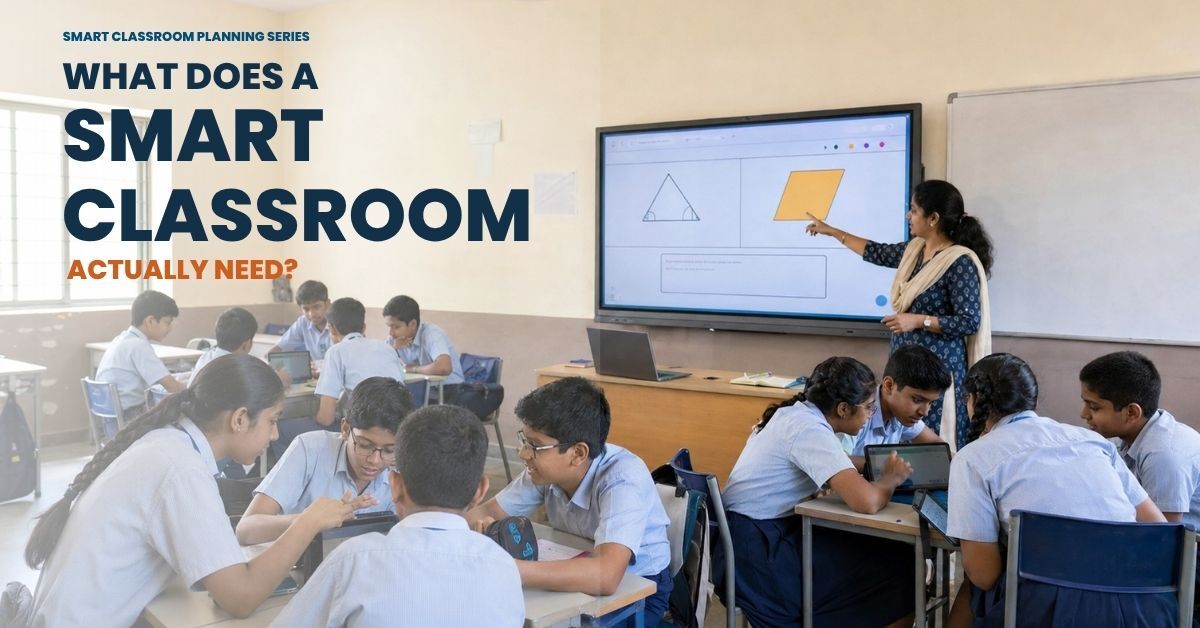
An interactive flat panel can become a shared workspace for group activities, brainstorming, project reviews, and presentations.
Classroom collaboration examples
- Groups add ideas to a shared digital board.
- Students compare two solutions.
- A team presents a science model.
- Students organize information into categories.
- Learners annotate a map or diagram.
- Groups give feedback on one another’s work.
- The class creates a shared mind map.
The teacher can bring student work into one place and discuss it with the whole class.
Make group work fair
One problem with group work is that the same students may do everything.
Use clear roles such as:
- Reader
- Writer
- Designer
- Checker
- Presenter
Each student has a job. The panel becomes a place where the group shows its thinking.
Support remote collaboration
With the right camera, microphone, software, and network, interactive displays can also support hybrid classrooms. Students joining from home can see the lesson and take part in activities.
The complete setup must be tested. A screen alone cannot create a good hybrid lesson. Audio, camera position, remote participation, and teacher workflow all matter.
Learn more about Hybrid Classroom solutions.
Make lessons easier to understand
Some ideas are difficult to explain with words alone.
Interactive displays help teachers use more than one type of explanation.
A teacher can combine:
- Text
- Images
- Audio
- Video
- Diagrams
- Digital models
- Animations
- Writing
- Student responses
Help students see abstract ideas
A teacher can show:
- The movement of planets
- The parts of a cell
- A map and timeline
- A number line
- A 3D shape
- A circuit
- A chemical process
- A machine or structure
The teacher can zoom in, highlight a part, move an object, and return to an earlier step.
Use visual explanations carefully
More visuals do not always mean better learning.
The screen should support the idea, not distract from it.
Ask students to do something with the content:
- Predict
- Explain
- Label
- Compare
- Draw
- Apply
- Find an error
A good interactive lesson helps students move from seeing to thinking.
Give teachers more flexible lesson options
Every class is different.
A teacher may need to explain an idea again, change the activity, show a different example, or respond to a student question.
An interactive flat panel makes it easier to adapt the lesson while teaching.
Teachers can change the lesson in real time
They can:
- Add a new example
- Write over a presentation
- Open a blank page
- Show a video
- Search an approved resource
- Display student work
- Save the class discussion
- Return to an earlier explanation
This flexibility is useful when students do not understand the first explanation.
The teacher can change the example instead of simply repeating the same words.
Save and reuse good lessons
Teachers can save useful explanations, diagrams, student responses, and activities.
They can improve them before the next class or share them with another teacher.
This can reduce preparation time and help the school build a useful lesson library.
The library should be easy to search. Use simple folder and file names.
Assign someone to manage outdated resources.
A digital lesson library should reduce work, not create another difficult system.
Support different learning needs
Students do not all learn in the same way.
Some students understand better through pictures. Some need to hear an explanation. Some learn by doing. Others need extra time and repeated practice.
An interactive flat panel can support different formats in one lesson.
Useful accessibility options may include
- Larger text
- High contrast
- Clear images
- Captions
- Audio support
- Text-to-speech
- Screen magnification
- Digital writing
- Repeated visual examples
- Multiple ways to answer
The exact accessibility features depend on the display, software, and content.
Schools should test the features with teachers and students who will use them.
Do not assume the screen solves every accessibility need
The room also matters.
Check:
- Viewing distance
- Lighting and glare
- Screen height
- Sound quality
- Seating position
- Physical access
- Font size
- Language support
A good classroom makes it easy for every student to see, hear, and take part.
Use quick feedback during the lesson
Teachers should not have to wait until an exam to find out that students are confused.
An interactive flat panel can support quick checks during a lesson.
Simple assessment activities
- Ask students to choose an answer.
- Display three possible solutions.
- Ask learners to identify an error.
- Use a true or false question.
- Ask for a prediction before a demonstration.
- Invite students to explain a process.
- Show a graph and ask what it means.
- Ask students to summaries the lesson in one sentence.
The teacher can use the response to decide what to do next.
If many students choose the wrong answer, the teacher can explain the concept again. If most students understand, the teacher can move to a more difficult activity.
Make every student respond
When a teacher asks one student a question, the answer may not show what the whole class understands.
Use responses that involve everyone when possible. Students can show a choice, write a short answer, or discuss the reason for their answer.
The panel is useful when it helps the teacher see the class more clearly.
Improve access to digital content
Teachers use many types of content:
- Presentations
- Digital textbooks
- Videos
- Websites
- Images
- Online simulations
- Learning applications
- Worksheets
- Student projects
An interactive flat panel can bring these resources into the lesson.
Check the school’s digital workflow
Before buying, test:
- PowerPoint
- Google Slides
- PDFs
- Videos
- Web pages
- Images
- Spreadsheets
- Digital textbooks
- Cloud folders
Check whether fonts, images, links, video, and audio work correctly.
A file that opens but looks different from the original can still create problems during class.
Check Google and Microsoft support
If teachers use Google Workspace, Google Classroom, OneDrive, SharePoint, or Microsoft 365, test the complete process.
Can the teacher:
- Sign in safely?
- Find the lesson?
- Open it quickly?
- Teach from it?
- Save the work?
- Share it with students?
The fewer steps, the easier the system is to use.
Reduce old projector problems and simplify the room
Interactive flat panels can reduce some problems linked to projectors and older interactive boards.
Possible advantages include:
- No projector lamp replacement
- Fewer shadows on the board
- Clearer images in brighter rooms
- Direct touch interaction
- Built-in speakers
- Fewer separate devices
- Easier annotation
- Faster setup
However, the panel still needs correct installation and support.
Check the room before installation
Review:
- Wall strength
- Mounting height
- Power sockets
- Cable routes
- Network points
- Lighting
- Sound
- Viewing angles
- Teacher movement
- Student safety
The right panel in the wrong room will still create a poor experience.
C3 iT Xperts’ Classroom Tech solutions include interactive flat panels, smartboards, projectors, audio systems, and supporting education technology.
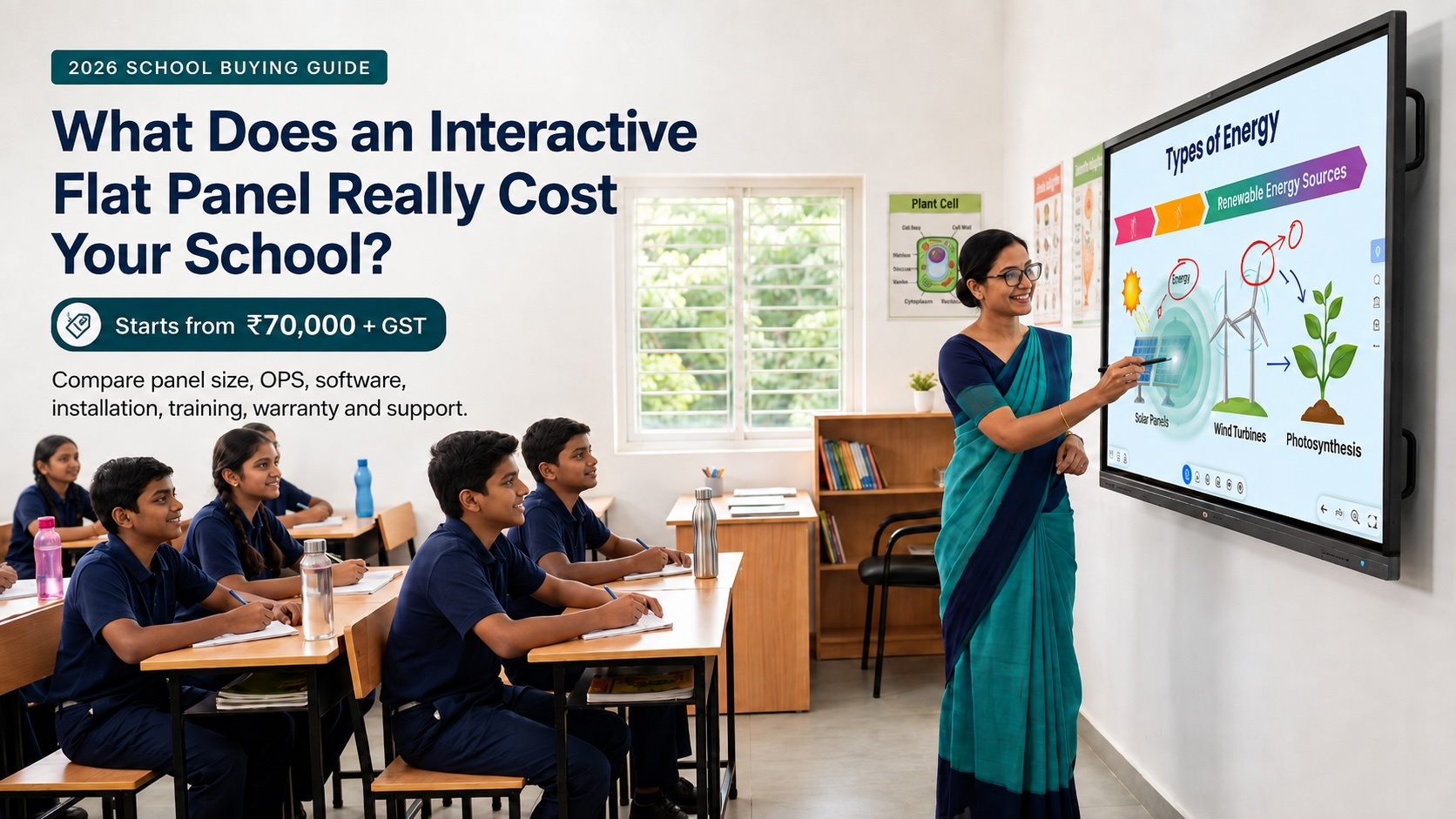
What does an interactive flat panel cost the school?
The panel price is only one part of the cost.
The full cost may include:
- Display
- OPS computer
- Software
- Mounting
- Installation
- Cabling
- Network work
- Electrical protection
- Audio
- Camera and microphone
- Training
- Warranty
- Annual renewals
- Technical support
A low quotation may leave out important items.
Ask every vendor to list each item clearly.
Compare the complete solution, not only the panel price.
Read Interactive Flat Panel Price for Schools in India: 2026 Buying Guide before you approve a large purchase.
How to make teachers comfortable with the panel
A training session can show teachers how the product works.
It cannot create daily confidence in one afternoon.
Teachers need to practice with real lessons.
A simple support plan
-Show the basic workflow.
-Let teachers use one interactive activity.
-Share examples and solve problems.
-Review classroom use and choose the next skill.
Training should focus on simple classroom actions:
- Start the lesson
- Find the file
- Write on the screen
- Involve students
- Save the work
- Continue if the internet fails
Support cautious teachers
Some teachers may worry about making a mistake in front of students.
Do not compare them publicly with technology champions.
Give them safe practice, peer support, and a clear backup method.
Teachers usually adopt technology when it feels helpful, not when it feels like a test.
For a practical adoption plan, read the 90-Day Smart Classroom Stabilization Plan.
How to measure classroom improvement
A school should decide how it will measure success before installation.
Measure teacher use
- How many teachers use the panel weekly?
- How quickly can lessons begin?
- How often are lessons saved and reused?
- How confident are teachers?
Measure student participation
- How often do students respond?
- Do groups work together?
- Are more students answering questions?
- Can students explain their thinking?
Measure technical support
- How many faults are reported?
- How quickly are they solved?
- Which rooms have repeated issues?
- Can the IT team manage devices centrally?
Measure learning workflow
- Is lesson preparation faster?
- Can teachers find resources easily?
- Is feedback given during the lesson?
- Are students receiving useful follow-up work?
Do not measure only the number of panels installed or the number of training attendees.
A panel creates value when it improves everyday teaching.
Proof of concept before a full rollout
A product demonstration is not the same as a classroom test.
Before buying many panels, run a pilot in one or two rooms.
Test real lessons
Ask teachers to:
- Open a normal lesson file.
- Write on the screen.
- Show a video.
- Use a digital activity.
- Invite a student to respond.
- Save the lesson.
- Continue if the network fails.
Test different teachers
Include:
- A teacher who is confident with technology
- A teacher who uses some technology
- A teacher who needs more support
If only the most confident teacher succeeds, the system is not fully tested.
Ask for honest feedback
- What was easy?
- What was confusing?
- What slowed the lesson down?
- Did students participate more?
- What training is still needed?
- Would you use the panel tomorrow?
A two week pilot can reveal problems that never appear in a short showroom demonstration.
Common mistakes schools should avoid
Buying only because the screen looks modern
A modern screen will not improve a weak lesson plan.
Showing videos without asking questions
Watching is not the same as learning. Give students a task before, during, or after the video.
Using too many features at once
Start with one or two simple activities. Add more features only after teachers are comfortable.
Ignoring software and file compatibility
Teachers should not have to rebuild years of lesson content.
Forgetting audio
Students need to hear the teacher and digital content clearly.
Installing without training
The first day creates awareness. Daily use creates value.
Measuring screen time instead of learning
A screen can be on while students remain passive. Measure participation, feedback, and lesson flow.
A simple 30 day plan for schools
1: Find the need
Talk to teachers and students. Identify the classroom problems the panel should solve.
2: Prepare two lessons
Create two lessons with a clear question, visual resource, student activity, and quick check.
3: Test in one classroom
Let teachers use the panel in real lessons. Watch the beginning, transitions, student response, and end of the lesson.
4: Review and improve
Keep what worked. Change what did not.
Plan the next step only after the first workflow is comfortable.
A small successful pilot is better than a large rollout that overwhelms teachers.
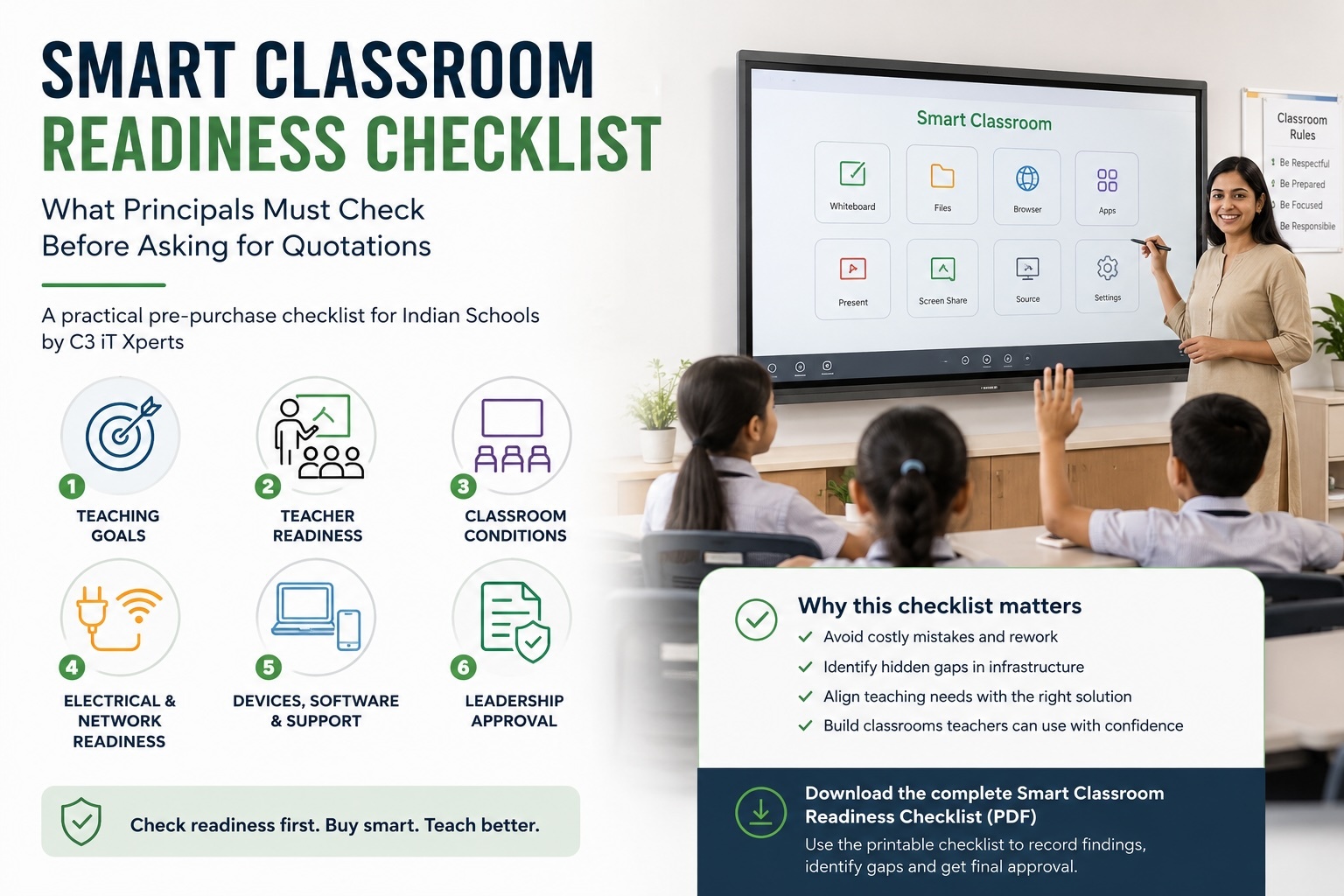
Get help before you invest
Choosing an interactive flat panel is more than buying a screen.
It is a decision about how your school will teach for the next several years.
C3 iT Xperts can help your school review:
- Classroom needs
- Display size
- Teacher devices
- Software
- File compatibility
- Google and Microsoft workflows
- Network and electrical readiness
- Audio and cameras
- Training
- Warranty and support
- Total cost of ownership
Book a classroom technology consultation
Talk to C3 iT Xperts about your school’s classroom technology plan
Download the SMART Classroom Reset Guide
Get the free SMART Classroom Reset Guide
Explore C3 classroom technology
See C3 iT Xperts Classroom Tech solutions
Frequently asked questions
What is an interactive flat panel display?
An interactive flat panel display is a large touchscreen used for lessons, digital writing, videos, collaboration, and student activities.
How do interactive flat panels improve student engagement?
They allow students to write, solve, move, compare, present, and respond to lesson content. Engagement improves when the teacher gives students a clear activity to complete.
Are interactive flat panels better than projectors?
They can provide clearer images, direct touch interaction, built-in audio, and fewer separate devices. The best choice still depends on the room, budget, teaching needs, and support plan.
Can interactive flat panels support hybrid classrooms?
Yes, when the display is combined with a suitable camera, microphone, software, network, and classroom workflow. The complete system should be tested before rollout.
How can interactive flat panels support accessibility?
They may support larger text, high contrast, captions, audio, text-to-speech, magnification, and different ways to respond. The exact features depend on the panel and software.
What size panel is best for a classroom?
Many schools compare 65-inch and 75-inch displays for standard classrooms. Larger rooms may need 86-inch or 98-inch panels. Check viewing distance and the last row before buying.
How important is teacher training?
It is essential. Teachers need practical training that shows how to use the panel during real lessons, not only how to operate the buttons.
How can a school calculate the total cost?
Include the display, OPS, software, installation, mounting, network work, electrical protection, audio, training, warranty, renewals, maintenance, and support.
How long should a school test an interactive panel?
A two-week pilot is a good starting point. A longer pilot can show how the panel works across different subjects and teacher groups.
Can C3 iT Xperts help review a classroom technology plan?
Yes. C3 iT Xperts can help schools assess needs, compare solutions, plan installation, support teacher adoption, and review the complete classroom technology system.
About the Author

Manoj Sundaram
Founder @ C3 iT Xperts
I help K–12 leaders turn "dusty" classroom tech into a daily teaching habit. 18 years and 11,000 classrooms have taught me that the best tech is the tech that "disappears" into the teaching rhythm.
18+
Years Experience
11k+
Classrooms
50k+
Educators Impacted
- interactive flat panel,
- Viewboards,
- Hybrid learning,
- Ed-Tech,
- large touch screen monitor,
- smart boards,
- Education,
- Smart Classrooms,
- Virtual Classrooms