.png?width=1322&height=350&name=C3ITXperts-logo-R%20(1).png "C3ITXperts-logo-R (1)")


Updated August 18th 2026
A regular display shows information.
An interactive touch screen lets people work with it.
That difference can change the way customers explore products, the way employees collaborate, and the way students learn.
But an interactive screen is not automatically the right choice for every room or every budget.
Some organizations need a simple display for announcements or presentations.
Others need customers, staff, or students to search, compare, create, write, and respond on the screen.
The right decision depends on the task.
A regular display may be enough when people only need to watch.
An interactive touch screen may be better when people need to make a choice, explore information, complete an activity, or share ideas.
This guide explains the difference between interactive touch screens and regular displays. It covers practical benefits, business and education use cases, cost considerations, accessibility, security, installation, software, and the questions to ask before buying.
The simple difference
A regular display is mainly an output device.
It receives information from a computer, media player, cable, or streaming system and shows that information to an audience.
An interactive touch screen is both an output and input device.
It shows information and accepts touch, pen, or gesture input. Users can select options, write notes, move objects, complete forms, explore menus, and interact with content.
A regular display is useful for:
- Digital signage
- Public announcements
- Presentations
- Video playback
- Menu boards
- Room schedules
- News and information
- Passive viewing
An interactive touch screen is useful for:
- Self-service information
- Product exploration
- Collaboration
- Training
- Student participation
- Digital whiteboarding
- Interactive presentations
- Surveys and feedback
- Wayfinding
- Live demonstrations
The question is not whether touch is impressive.
The question is whether interaction creates value for the people using the screen.
Why the choice matters
Choosing the wrong display can create problems after installation.
A regular display may be installed in a space where customers need to search for information.
Staff may then have to answer questions manually.
An interactive touch screen may be installed in a room where people only need to view announcements.
The organization may pay for features that are rarely used.
The decision affects:
- User experience
- Staff workload
- Customer service
- Teaching practice
- Meeting quality
- Accessibility
- Content management
- Technical support
- Total ownership cost
Before choosing a display, ask:
- Who will use the screen?
- What will they need to do?
- How often will they interact with it?
- What software will run on it?
- Who will update the content?
- How will the screen be supported?
These questions are more useful than choosing a product based only on screen size.
Seven advantages of interactive touch screens
1. They make information easier to explore
A regular display presents information in a set order.
An interactive touch screen can allow users to choose the information they need.
For example, a visitor may select:
- A product category
- A service type
- A department
- A location
- A price range
- A language
- A support topic
This reduces the need to display every piece of information at once.
The screen can show a simple starting menu and reveal more detail when the user selects an option.
This can make information easier to understand, especially when the organization has many products, services, departments, or resources.
2. They can improve customer experience
Customers often want information quickly.
They may want to compare products, check availability, view specifications, find a service, or understand the next step.
An interactive display can provide this information in a self-service format.
Staff remain available for complex questions, while the screen handles basic exploration.
A good customer-facing touch screen should:
- Start with a clear question
- Use simple navigation
- Provide readable content
- Offer a clear next step
- Avoid collecting unnecessary personal information
- Provide staff assistance when needed
The screen should support the customer journey, not make the customer search through a confusing menu.
3. They support collaboration
In a meeting room or training space, people can work around one shared screen.
They can:
- Add ideas
- Organize information
- Mark up a document
- Compare options
- Review a plan
- Create a diagram
- Record decisions
- Present group work
A regular display can show a presentation, but someone usually needs to control the computer.
An interactive touch screen allows the group to work directly with the content.
A simple collaboration activity can follow these steps:
- Display the problem or question.
- Ask participants to add ideas.
- Group similar ideas.
- Discuss priorities.
- Mark decisions.
- Save and share the final board.
The screen becomes a shared workspace rather than a wall-mounted monitor.
4. They can make presentations more engaging
A presenter can use a touch screen to:
- Annotate a slide
- Highlight a data point
- Zoom into an image
- Move between topics
- Compare two options
- Invite an audience response
- Capture questions
- Return to earlier notes
This creates a more flexible presentation.
The presenter can respond to the audience instead of following a fixed sequence of slides.
The content should still be well planned. Interaction does not replace a clear message.
5. They support self-service
Self-service can reduce pressure on staff when users need simple information.
Possible applications include:
- Visitor check-in
- Product information
- Hotel services
- Healthcare navigation
- Public information
- Campus maps
- Event schedules
- Customer surveys
- Retail catalogues
- Internal employee services
A self-service screen should be easy to use for someone who has never seen it before.
Use large touch targets, short instructions, clear labels, and a simple way to return to the home screen.
Provide an alternative for people who cannot or do not want to use the touch screen.
6. They can collect feedback
An interactive screen can invite users to provide feedback after a service, event, lesson, or support interaction.
A short feedback activity may ask:
- Was the information easy to find?
- Was the service helpful?
- Did the presentation answer your question?
- Which topic should be explained better?
- Would you recommend the experience?
Keep feedback forms short.
If the screen asks too many questions, people may stop before completing them.
The organization should also decide how feedback will be reviewed and acted upon.
Collecting information without a follow-up process will not improve the experience.
7. They can support practical learning
In education and training, touch screens allow learners to interact with examples rather than only watch them.
Students can:
- Label diagrams
- Solve problems
- Arrange steps
- Highlight evidence
- Compare answers
- Present projects
- Create mind maps
- Review class notes
- Work with simulations
A regular display can still support excellent teaching.
The interactive screen adds value when the activity requires students to make choices, explain thinking, or create something.
When a regular display may be the better choice
Interactive technology is not always necessary.
A regular display may be the better option when:
- The content is mainly for viewing
- The screen is used for announcements
- Users do not need to enter information
- The organisation has a limited budget
- The room needs a simple presentation system
- The content changes through a central media player
- Maintenance must be extremely simple
- The screen is installed in a public area with little supervision
A regular display can provide strong value when the use case is clear.
Do not purchase touch capability if no one needs to touch the screen.
When an interactive touch screen is the better choice
An interactive touch screen may be more suitable when:
- Users need to search for information
- Customers need to compare products
- Students need to participate
- Teams need to collaborate
- Presenters need to annotate content
- Staff need to complete digital forms
- Visitors need wayfinding
- Trainers need to demonstrate processes
- The organization wants to reduce repetitive staff assistance
The screen should have a defined purpose before it is installed.
Interactive touch screens in education
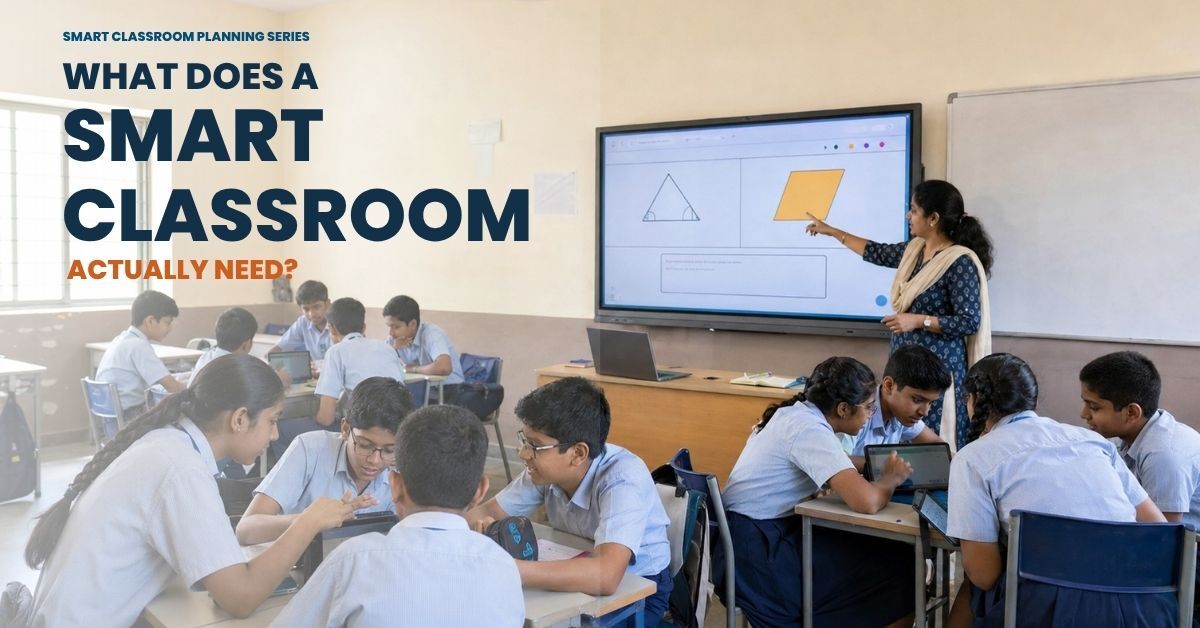
In schools, an interactive touch screen can support the full lesson cycle.
Before the explanation
The teacher can display a question, image, or problem and ask students what they notice.
During the explanation
The teacher can build a diagram, annotate text, model a calculation, or show a process step by step.
During practice
Students can complete an activity, compare answers, move objects, or explain their reasoning.
During feedback
The teacher can display student work, identify a strength, and show a specific improvement.
At the end
The class can create a shared summary and save the important points for later review.
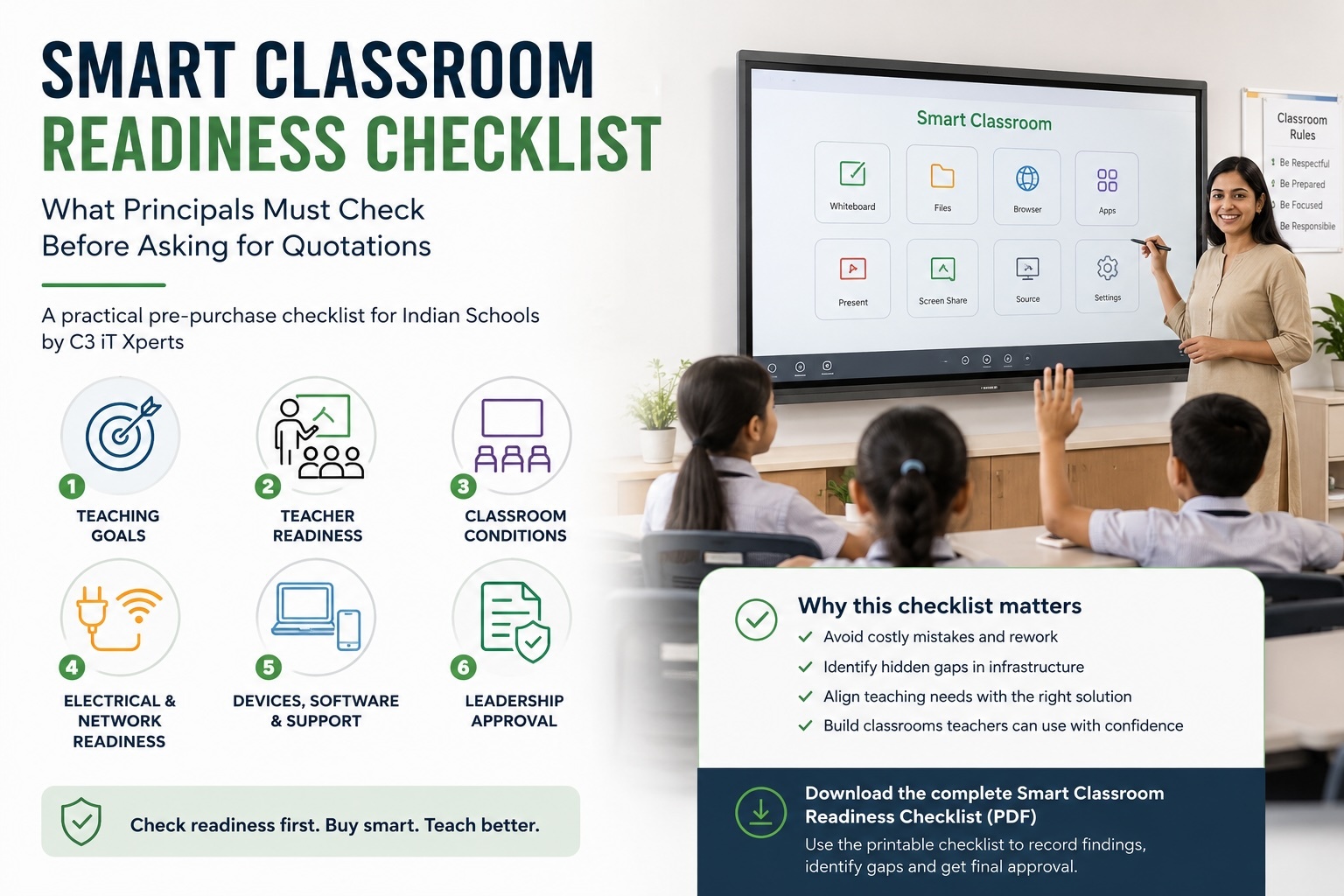
C3 iT Xperts’ Classroom Tech solutions can support schools planning interactive displays, digital lessons, audio, projection, and classroom technology.
Interactive touch screens in business
Businesses can use interactive screens in different parts of the customer and employee experience.
Reception and visitor areas
Visitors can view directions, meeting information, services, and contact details.
Retail and showrooms
Customers can explore products, compare features, view specifications, and identify suitable options.
Meeting rooms
Teams can collaborate on plans, annotate documents, review data, and save decisions.
Training rooms
Trainers can display examples, invite responses, and allow participants to work with the material.
Events and exhibitions
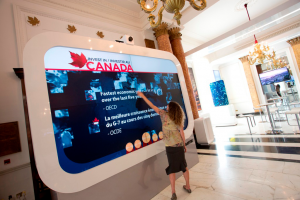
Organizations can use touch displays to help visitors explore products, services, case studies, and interactive demonstrations.
The content should match the user’s reason for touching the screen.
Build content for interaction
A regular presentation should not simply be copied onto a touch screen.
Interactive content should provide a clear action.
Users might:
- Select
- Compare
- Sort
- Search
- Calculate
- Annotate
- Submit
- Navigate
- Create
- Review
A useful design process is:
- Identify what the user needs to know.
- Identify what the user needs to do.
- Remove information that is not necessary.
- Create a clear starting screen.
- Add simple navigation.
- Test the experience with a new user.
- Improve confusing steps.
The screen should not make users guess what to do next.
Make the screen easy to use
A touch screen may be large, but the interface can still be difficult.
Use:
- Large buttons
- Short labels
- Strong color contrast
- Consistent navigation
- Clear confirmation messages
- A visible home button
- A simple back button
- Enough space between touch targets
- Readable text
- Instructions that appear before the task
Avoid:
- Small links
- Crowded menus
- Long paragraphs
- Unclear icons
- Too many animations
- Hidden navigation
- Pop-ups that block the screen
Test the interface with different users.
A screen that feels obvious to its designer may confuse a first-time visitor.
Consider accessibility
Interactive touch screens should be usable by as many people as possible.
Review:
- Screen height
- Reach range
- Viewing angle
- Text size
- Color contrast
- Audio alternatives
- Captions
- Keyboard or staff assistance
- Language options
- Time limits
- Clear error messages
In a classroom, provide alternative ways for students to participate when reaching the screen is difficult.
In a public space, provide staff assistance or another access route when a visitor cannot use the screen.
Accessibility should be planned before installation, not added after complaints.
Review hardware and software together
An interactive display is more than a panel of glass.
The complete solution may include:
- Display hardware
- Touch sensors
- Operating system
- Collaboration software
- Digital signage tools
- Content management
- Network connection
- Audio
- Camera
- Microphone
- Device management
- Security controls
- Mounting
- Service support
A good screen with poor software may still create a difficult experience.
A good application may perform badly on an unsuitable device.
Review how the parts work together before buying.
Plan security and privacy
A touch screen may collect information through forms, surveys, accounts, analytics, or connected applications.
Ask:
- What information is collected?
- Where is it stored?
- Who can access it?
- How long is it retained?
- Is user consent required?
- How are accounts protected?
- Can the device be locked down?
- How are software updates managed?
- What happens when the device is retired?
In schools, avoid displaying confidential student information on a public or shared screen.
In business, avoid collecting personal information unless there is a clear need and approved process.
Compare total cost, not only purchase price
The cost of an interactive screen may include:
- Display hardware
- Mounting
- Installation
- Software licenses
- Content creation
- Network upgrades
- Accessories
- Training
- Maintenance
- Security updates
- Replacement parts
- Support
A lower-priced screen may become expensive if staff cannot use it, software is difficult to manage, or repairs take too long.
A higher initial investment may provide better value when it reduces staff workload, improves service, and supports long-term use.
Prepare a complete ownership estimate before approving the purchase.
Support adoption after installation
Installation is not the end of the project.
Users need to know how to operate the screen and what to do when something fails.
A basic training session should cover:
- Starting and closing the screen.
- Opening the correct application.
- Connecting a device.
- Using touch and pen input.
- Returning to the home screen.
- Saving or sharing work.
- Reporting a technical problem.
- Continuing with a backup process.
For schools, training should use real lessons.
For businesses, training should use real customer or meeting scenarios.
C3 iT Xperts’ Professional Development Training can support education technology adoption, digital learning, Google Workspace, creative tools, AI awareness, and classroom practice.
Measure the value of interaction
Do not measure success only by the number of touch screens installed.
Measure what users can do better.
Customer measures
- Can visitors find information without repeated staff help?
- Are customers completing the intended action?
- Is feedback becoming easier to collect?
- Are users completing the journey without confusion?
Employee measures
- Are meetings more collaborative?
- Are training sessions more active?
- Are teams saving decisions and notes?
- Is staff time being used for more valuable work?
Student measures
- Are more students participating?
- Can students explain their thinking?
- Are students improving work after feedback?
- Are teachers using the display for meaningful tasks?
Operational measures
- Is the screen reliable?
- Can staff update content?
- Are support issues resolved quickly?
- Are software and security updates managed?
A touch screen is successful when it improves an experience, not simply when people touch it.
Common mistakes to avoid
Buying touch capability without a use case
If users only need to watch content, a regular display may be more suitable.
Installing the screen without planning the user journey
A touch screen should have a clear starting point, easy navigation, and a useful next step.
Reusing regular presentation slides
Slides designed for watching may not work well for touch interaction.
Ignoring support
A screen that stops working can quickly lose trust if no one knows how to fix it.
Collecting data without a process
Feedback is valuable only when the organization reviews it and acts on it.
Forgetting accessibility
A screen that some users cannot reach, read, hear, or navigate is not a complete solution.
A practical selection checklist
Before approving an interactive touch screen, confirm:
- The purpose is clear.
- The audience is defined.
- The screen size fits the room.
- Touch accuracy is suitable.
- Text is readable from the intended viewing distance.
- Software supports the required activity.
- Devices can connect reliably.
- Network access is available.
- Audio and camera requirements are covered.
- Accessibility has been reviewed.
- Security and privacy requirements are clear.
- Installation and mounting are planned.
- Training is included.
- Maintenance and support are available.
- Total ownership cost is understood.
- Success measures have been chosen.
Internal resources for school and business leaders
Explore related C3 iT Xperts resources:
- The 90-Day Smart Classroom Stabilization Plan
- Why Teachers Avoid Smart Boards and How Principals Can Help
- The 5-Minute Smart Classroom Walkthrough Audit
- Application of Touch Screen Technology in Various Fields
- Education Solutions
Plan your interactive display solution
An interactive touch screen is valuable when it helps people do something better.
Before buying, define the task, understand the users, design the experience, test the workflow, and plan support.
C3 iT Xperts can help schools, businesses, training teams, and organizations plan interactive displays, classroom technology, collaboration, digital learning, installation, and user support.
Frequently asked questions
What is the difference between an interactive touch screen and a regular display?
A regular display mainly shows content.
An interactive touch screen also accepts touch, pen, or gesture input, allowing users to explore, write, select, collaborate, and complete activities.
Are interactive touch screens better than regular displays?
They are better when users need to interact with information.
A regular display may be more suitable when people only need to view announcements, presentations, videos, or digital signage.
Can interactive touch screens support classrooms?
Yes. Teachers can use them to display explanations, annotate examples, involve students, compare answers, present student work, and save lesson notes.
Can businesses use interactive touch screens?
Yes. Businesses can use them for self-service, product exploration, showrooms, visitor information, events, training, meetings, and collaboration.
Do interactive touch screens reduce staff workload?
They can reduce repetitive assistance when users can find basic information independently.
The screen must be easy to use and connected to a clear service process.
What software is needed?
The required software depends on the use case.
A school may need whiteboarding, lesson, collaboration, and classroom applications.
A business may need signage, forms, product catalogues, surveys, or wayfinding software.
Are interactive touch screens accessible?
They can be designed for accessibility through readable content, strong contrast, captions, suitable height, alternative input, and staff assistance. Accessibility should be reviewed before installation.
How should success be measured?
Measure user actions, task completion, participation, staff time, feedback, reliability, content updates, and support issues. Do not measure only the number of touches.
What should organizations check before buying?
Check purpose, audience, room, screen size, touch accuracy, software, connectivity, audio, accessibility, security, installation, training, maintenance, support, and total ownership cost.
About the Author

Manoj Sundaram
Founder @ C3 iT Xperts
I help K–12 leaders turn "dusty" classroom tech into a daily teaching habit. 18 years and 11,000 classrooms have taught me that the best tech is the tech that "disappears" into the teaching rhythm.
18+
Years Experience
11k+
Classrooms
50k+
Educators Impacted